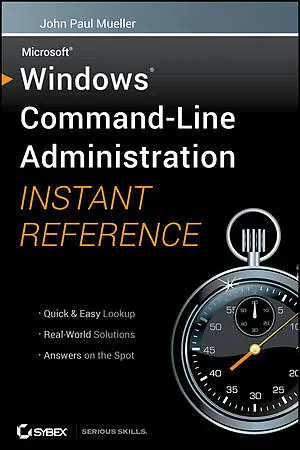
Windows Command Line Administration Instant Reference
Beschreibung
Focusing just on the essentials of command-line interface (CLI), this title shows how to quickly perform day-to-day tasks of Windows administration without ever touching the graphical user interface (GUI). It replaces many tedious GUI steps with just one comma...Format auswählen
- Kartonierter EinbandCHF 41.50
Wird oft zusammen gekauft
Andere Kunden kauften auch
Beschreibung
Focusing just on the essentials of command-line interface (CLI), this title shows how to quickly perform day-to-day tasks of Windows administration without ever touching the graphical user interface (GUI). It replaces many tedious GUI steps with just one command at the command-line, while easy to access answers provide solutions on the spot.
Autorentext
ABOUT THE AUTHORJohn Paul Mueller, consultant, application developer, writer, and technical editor, has written over 300 articles and 86 books, including Professional IronPython. His topics range from programming and operating systems to home security and accessibility. He has contributed articles to such magazines as DevSource, asp.netPro, InformIT, SQL Server Professional, and Visual C++ Developer, among others. His website is www.mwt.net/~jmueller/.
Klappentext
The perfect companion to any book on Windows Server 2008 or Windows 7, and the quickest way to access critical information Focusing just on the essentials of command-line interface (CLI), Windows Command-Line Administration Instant Reference easily shows how to quickly perform day-to-day tasks of Windows administration without ever touching the graphical user interface (GUI). Specifically designed for busy administrators, Windows Command-Line Administration Instant Reference replaces many tedious GUI steps with just one command at the command-line, while concise, easy to access answers provide solutions on the spot. * Provides practical examples, step-by-step instructions, and contextual information * Quick-reference style delivers the commands needed for managing data and the network; working with Active Directory; performing diagnostics and maintenance; and, creating batch files and scripts * Covers administration for Windows Server 2008 Server Core, Windows Server 2008 (including R2), and Windows 7 Administrators can get more done in less time with CLI than they can with the standard GUI. Compact enough to keep on hand at all times, Windows Command-Line Administration Instant Reference provides administrators with a convenient, fast and simple way to use CLI.
Inhalt
Introduction xix
Part I: Command Line Basics 1
Chapter 1: Configuring the Local Machine 3
Configure the Command Window 4
Set the Window Options 4
Change the Font 7
Choose a Window Layout 8
Define the Text Colors 9
Set the Environment 10
Manage Environment Variables with the Set Command 10
Manage Environment Variables with the SetX Utility 13
Perform Common Tasks 16
Clear the Display 16
Determine the Operating System Version 16
Start an Application 16
Work with Services 18
Shut Down the System 19
Obtain Command Line Help 20
Chapter 2: Making Remote Connections 23
Configure the Remote System 24
Change Security and Basic Setup 25
Setup Remote Administrator 28
Use the Remote Desktop Connection Application 30
Create a Connection 30
Use a Saved Connection 35
Set the Display 35
Access Local Resources 36
Run a Configuration Program 38
Optimize Performance 38
Terminate a Session 39
Use the Start Menu 40
Use the Logoff Utility 40
Chapter 3: Automating Tasks 41
View and Manage Tasks Using Scheduled Tasks 42
Configure the Task Scheduler 43
View Tasks 44
Create New Tasks 46
Delete Existing Tasks 50
Manage Tasks Using the SchTasks Command 51
Use the /Create Switch 51
Use the /Delete Switch 53
Use the /Query Switch 53
Use the /Change Switch 54
Use the /Run Switch 54
Use the /End Switch 54
Part II: Managing Data 55
Chapter 4: Working with File and Directory Objects 57
Manage Directory Objects 58
Find Directories 58
Find Directories Using Patterns 59
View the Current Directory 60
Change the Current Directory 60
Create Directories 61
Move Directories 61
Rename Directories 61
Remove a Directory 62
Display a Directory Structure 62
Manage File Objects 63
Find Files 63
Find Files in Sorted Order 64
Find Files by Attribute 65
Find Files Using Patterns 66
Copy Files 68
Perform Bulk File Transfers 69
Remove Files 70
Move Files 71
Rename a File 71
Set File Attributes 71
Work with File Associations and Types 72
Determine File Associations 72
Create File Associations 73
Determine File Types 73
Create File Types 73
Make Data Links 74
Create Simple Hard Links 75
View Simple Hard Links 75
Delete Simple Hard Links 75
Create Hard Links Using the New Technique 76
Create Symbolic Links 76
Create Junctions 77
Chapter 5: Administering File and Directory Content 79
Execute Applications Anywhere 80
View Application Paths 80
Set Application Paths 80
Locate Information in Files 81
Find Simple Strings 81
Find Complex Strings 82
Display Files Containing Strings 82
Perform Case Insensitive Searches 83
Monitor the File System with the FSUtil Command 83
Control File System Behavior 83
Manage the Volume Dirty Bit 86
Obtain the File System Information Using FSInfo 87
Manage Quotas 88
Repair File System Errors 90
Display Data Files 92
Display a Data File on Screen 92
Employ Data Redirection 92
Display Data One Page at a Time 95
Chapter 6: Managing the Hard Drive 99
Save Hard Drive Space 101
Compress Data 101
Uncompress Data 102
View Compression Status 102
Manage the Volume 102
Get Volume Information 103
Manage Volume Labels 103
Format a Disk 103
Mount a Volume 104
Maintain the Volume 106
Determine File and Directory Status 106
Locate Bad Sectors 107
Perform Boot-Time Disk Checks 108
Improve Disk Access Performance 109
Manage Partitions 110
Start DiskPart 110
List the Objects 111
See Object Details 112
Select an Object 113
Rescan a Computer for Objects 114
Create a Partition 114
Create a Volume 116
Clean a Drive 117
Mark a Partition as Active 117
Mark a Partition as Inactive 118
Assign a Drive Letter 118
Remove a Drive Letter 119
Extend a Volume 119
Delete an Object 120
Exit DiskPart 120
Chapter 7: Securing the Data 121
Protect Data 122
Encrypt a File or Directory 122
View Encrypted Files and Directories 123
Encrypt Hidden Files 124
Back Up Recovery Keys and Certificates 125
Add a User to a File or Directory 125
Remove a User from a File or Directory 126
Decrypt a File or Directory 127
Change File and Directory Access 127
Obtain the DACL 127
Find an SID 130
Grant Permission 130
Deny Permission 131
Remove Permission 131
Set the Owner 132
Verify Security 132
Detect Shared Open Files 132
Use the Query Option 132
Use the Disconnect Option 133
Use the Local Option 134
Take Ownership of Files 134
Set Administrator Ownership 134
Set Other User Ownership 135
Part III: Managing the Network 137
Chapter 8: Managing the Network 139
Get the Media Access Control Information 140
Interact with the Network Using the Net Utility 141
Manage Users 141
Manage Accounts 143
Manage Domains and Local Groups 146
Manage Computers 149
View and Close Sessions 149
Perform Server Configuration 151
View Workstation Configuration 153
Manage Services 153
Manage Files 155
Obtain Help for the Net Utility 156
Manage Print Jobs 157
Manage Resources 158
Obtain Statistics 161
Configure Time Synchronization 163
Chapter 9: Working with TCP/IP 165
Manage the Internet Protocol 166
Display the IP Information 166
Renew Addresses for an Adapter 168
Clear the DNS Resolver Cache 168
Renew DHCP Addresses and Register DNS Names 169
Release a Connection 169
Use Basic Diagnostics 170
Check Connections 170
Trace Transmission Paths 171
Track the Network Path 172
Perform Detailed Network Diagnostics 173
Obtain a Copy of NetDiag 174
Perform a Test 175
Understand Diagnostics 175
Locate and Fix Minor Problems 177
Get Network Statistics 177
Display All Connections and Ports 177
Display Application Statistics 178 …